

Personal Learning Device (PLD) Initiative
The NDLP was launched at MOE’s Committee of Supply Debate in March 2020 to help students strengthen their digital literacy. One of the components of the NDLP is the introduction of the Personalised Digital Learning Programme (“PDLP”) for all secondary school students, whereby every secondary school student will own a school-prescribed PLD. The PLD will be used together with the national e-learning platform – the Singapore Student Learning Space (“SLS”) – as well as other educational technology to personalise and enhance students’ learning. This will also enable students to acquire digital skills and apply these skills as they navigate an increasingly digitalised world.
Personal Learning Device (PLD) for Secondary School Students
2. Overview.
The PLD will be used in tandem with the national e-learning platform – the Singapore Student Learning Space (SLS) – as well as other educational technology to personalise and enhance students’ learning. This will also enable students to acquire digital skills and apply these skills as they navigate an increasingly digitalised world.
For newly posted in students at Secondary 1, parents will need to ensure that the following are submitted before Wednesday, 31 December 2025, 12 pm.
-
Intent to purchase PLD – Parents without SingPass are to approach the general office for the hardcopy form.
-
Use of Edusave for purchase of PLD (requires SingPass log in) – Parents without SingPass are to approach the general office for the hardcopy form.
3. Purchase of PLD bundle.
The school has made arrangements for you to purchase the PLD from ASIAPAC TECHNOLOGY PTE. LTD. (Vendor) for your child’s/ward’s use in school. The vendor has been identified based on the choice of the device determined by the school from a panel of awarded suppliers established by MOE. The PLD bundle which includes warranty and insurance for purchase by your child/ward will be the Enhanced Device Bundle comprising the following :
-
Apple iPad 11-inch A16 Bionic chip, 6 GB Memory, 128 GB Storage], WiFI only
-
Apple Pencil USB-C
-
Ruggedized Keyboard Combo 4 Case
-
4 Year AppleCare+
-
4 Year Insurance
The price of the Enhanced Device Bundle is tentatively priced at $829.30 and is inclusive of 9% GST.
The Enhanced Device Bundle includes the device, associated accessories, insurance, warranty, and fortnightly courier service by Contractor to collect damaged devices from school (Or parents can choose to send directly to the Apple Service Centres)
-
Use of Edusave.
Students who are Singapore citizens can use their Edusave to pay fully or partly for the PLD, after setting aside provision for payment of miscellaneous fees. Parents/Guardians can also choose to pay cash for the PLD. MOE has provided Edusave top-ups of $200 in 2020 to 2023 to all eligible Singaporean students in primary and secondary schools. In 2025, MOE provided a $500 Edusave top-up for students aged 13-16 years old. This is on top of the annual Edusave contribution of $290 for secondary school students and $230 for primary school students.
5. Financial Assistance.
Subsidies are available for students who require funding support to purchase a PLD. Please note that it is compulsory for all students on the MOE Financial Assistance Scheme (FAS) to use their Edusave to pay for any remaining sums due for the PLD, after subsidies have been granted. Please see the table below for information on the eligibility for the subsidy:
Table 1 – Information on Subsidy
|
Students eligible for subsidy |
Income criteria |
How to Apply for Subsidy |
|
Students under MOE FAS |
Gross Household Income (“GHI”) is $4,000 or less, or Per Capita Income (“PCI”) * is $1,000 or less |
No action required. Automatically subsidised for the PLD. |
|
Students under School-based FAS |
GHI is $5,500 or less, or PCI is $1,375 or less |
Approach the school’s General Office to apply for a subsidy. |
|
Students who are currently not under the MOE FAS / School-based FAS |
GHI is $5,500 or less, or PCI is $1,375 or less |
Approach the school’s General Office to apply for a subsidy. |
“PCI” refers to the Gross Household Income divided by the total number of family members in the household.
Software Applications
6. IT Applications.
Schools will progressively roll out IT applications that will be vital for students’ teaching and learning through this programme. These include:
(a) Student iCON (Google Workspace): Every secondary school student will be provided with access to the Google Suite set of tools, including email address.
(b) Microsoft 365 Pro Plus: Every secondary school student will be able to use Microsoft Office tools that include Word, PowerPoint, and Excel.
The school will need to use your child’s/ward’s full name, Student iCON ID and class to set up user accounts. The school may also choose to roll out applications other than those listed above.
7. Device Management Application. ("DMA"). A DMA will
be pre-installed on all PLDs purchased through the school and will need
to be installed on devices that parents/guardians have opted for the student
to use in lieu of the PLD purchased through the school, after parents/guardians
have given consent. The DMA has 3 main components which will support the
effective use of the PLD in the classroom to enhance students’ learning
and safeguard their cyber wellness:
(a) Classroom Management Service. To help teachers
manage students’ use of the PLD during lesson time to improve classroom
management and support effective teaching and learning.
(b) Mobile Device Management Service. To help
update and manage the PLD, protect the PLD from malicious software, and
protects students from objectionable internet content.
(c) Usage Management Service. To enable
school and/or parents/guardians to better supervise and set helpful limits
for students’ use of PLD after school.
8. Cyber-wellness.Parents/Guardians may have concerns regarding students’ cyber wellness with the introduction of the PLD. The DMA allows the school to manage this by:
(a) collecting data on usage by the
student, such as the websites accessed on the PLD,
(b) monitoring, filtering, and limiting
the type of websites accessible to the student, and placing restrictions
on students’ screen time to prevent cyber addiction.
(c) placing restrictions on students’ screen
time to prevent cyber addiction
Please refer to Annexes A, B and C for more details on the functions and features of the DMA, and on the collection and protection of personal data. . Students are to also refer to the student handbook for the acceptable use policy for use of EdTech Resources.
-
Devices not purchased through the school. If parents/guardians choose not to purchase the school-prescribed PLD bundle (see para 3) and prefer that their child/ward use their own computing device (“non-prescribed device”) in school, that device must have the same Operating System (OS) as the school-prescribed PLD. The school will verify that the device has the same OS as the school-prescribed PLD and is compatible with the DMA before approving it as an alternative to the school-prescribed PLD. Parents will be required to consent to the installation of the DMA, and the DMA must be installed in the non-prescribed device, before it can be used in school in lieu of the school-prescribed PLD. Please note that the alternative device should not support cellular functions (i.e. WiFi only).
-
Purchase of PLD. To proceed with the purchase of the school-prescribed PLD, please consent for the purchase via the Parents Gateway (PG) notification or access the form here (https://go.gov.sg/hspld). Parents who want to use Edusave funds for the PLD (for Singapore citizens students only), please submit the online Standing Order (SO) from via this link: https://go.gov.sg/edusaveformsgsoby 31 Dec 2025 if you have not done so previously. If you are unable to submit the online form, please approach the school for assistance or to request for a hardcopy form.
-
Upcoming activities. Billing and payment for the PLD will commence in February and the delivery of the PLD is expected to be in Term 2. The projected timeline for the key activities is shown below:
Table 2 – Key Events
|
Projected Timeline |
Event |
Remarks and Links |
|
31 Dec 2025 |
Submission of intent to purchase |
required:
|
|
Submission of Use of Edusave |
2.Use of Edusave: https://go.gov.sg/edusaveformsgso |
|
|
Other applications |
where applicable:
|
|
|
Jan 2026 |
Confirmation of Order
|
Parents who had confirmed the purchase and submitted the required information will be informed. Parents choosing to use their own iPad will need to have their iPad assessed by the school for suitability. |
|
Jan-Feb 2026 |
Billing and Payment |
via AXS, Giro, or Cash payment to school after receiving the bill
|
|
Feb – Mar 2026 |
Deployment and onboarding of PLD and DMA |
Date to be advised after confirmation of all Sec 1 students' purchase is completed. |
|
Mar 2026 |
Briefing to Parents (Optional) |
Optional workshop for parents who opted for Option B under DMA settings (See Annex B) |
Next Steps
11. To proceed with the purchase of the PLD, please submit the online forms (see table 2) by 31 December 2025. The online forms will be available after Sec 1 registration. If you are unable to submit the form online, please contact the school for a hardcopy version.
12. For students with insufficient Edusave and remainder/full payment is required, the school will inform parents/guardians to make the balance payment. Payment modes are detailed below. For non-GIRO payment, payments should only be made after parents are informed by the school.
(a) Payment through GIRO (recommended) : Please ensure sufficient funds in the GIRO account to be deducted.
(b) Payment through AXS Mobile App: Select eServices > Ministry of Education > Student Bill (MOE/School Bill). Please key in your child/ward’s NRIC/FIN and amount payable when prompted.
(c) Payment by Cash : Pay at the General Office after school dismissal.
Further Queries
13. Should there be any further queries or clarification, please contact Mr Javen Gwee, HOD/ICT & Data Management at 6385-1990.
Thank you!
Annex A: Functions of the DMA
|
Functions |
Details |
|
1. Mobile Device Management Service
This facilitates the updating and management of the PLDs, protects PLDs from malicious software, and protects your child/ward from objectionable internet content, or content that may not be conducive to teaching and learning during school hours.
|
· Facilitates automatic installation of applications required for teaching and learning · Filters objectionable content or content that may not be conducive to teaching and learning (e.g., pornography, gambling, or websites containing extremist content) · Enables automatic updating of PLD OS and its applications in accordance with cybersecurity best practices. |
|
2. Classroom Management Service
Enables teachers to manage the student’s use of the PLD during lesson time to improve classroom management and support effective teaching and learning.
Teachers will only be able to view students’ screens during lessons. |
During lessons, teachers will be able to: · Guide and monitor students’ use of devices (e.g., lock or unlock screen to redirect students’ attention or screen sharing) · Launch specific applications and/or websites for teaching and learning on your child’s/ward’s device · Facilitate the sharing of content
|
|
3. Usage Management Service*
Enables the school and/or parents/guardians* to better supervise and set helpful limits for your child’s/ward’s use of PLD after school.
* Only available for parents/guardians on Option A (See Annex B below) |
· Screen time control to allow school and/or parents/guardians to set usage limits so that your child/ward does not use the PLD excessively · School and/or parents/guardians can control installation of applications to ensure that the device is used optimally for teaching and learning · Filters objectionable content to protect your child/ward from harmful content · Parents/Guardians can manage device usage of child/ward |
Annex B: DMA Settings After School Hours
1. The Device Management Application (DMA) solution for iPad PLDs is Jamf.
2. During school hours, the Default Setting will apply.
3. The general setting for the PLD are:
|
School hours |
After-school hours (Not applicable to Option B users) |
Sleep Hours (Not applicable to Option B users) |
|
6.30 am and 3.00 pm |
3.00 p.m. to 10.30 pm |
10.30 pm to 6.30 am |
4. After school hours, parents/guardians have a choice to continue with the Default Setting or opt for an Alternative Setting. The following table outlines the different levels of restrictions, controls, and monitoring for the different DMA options after school hours.
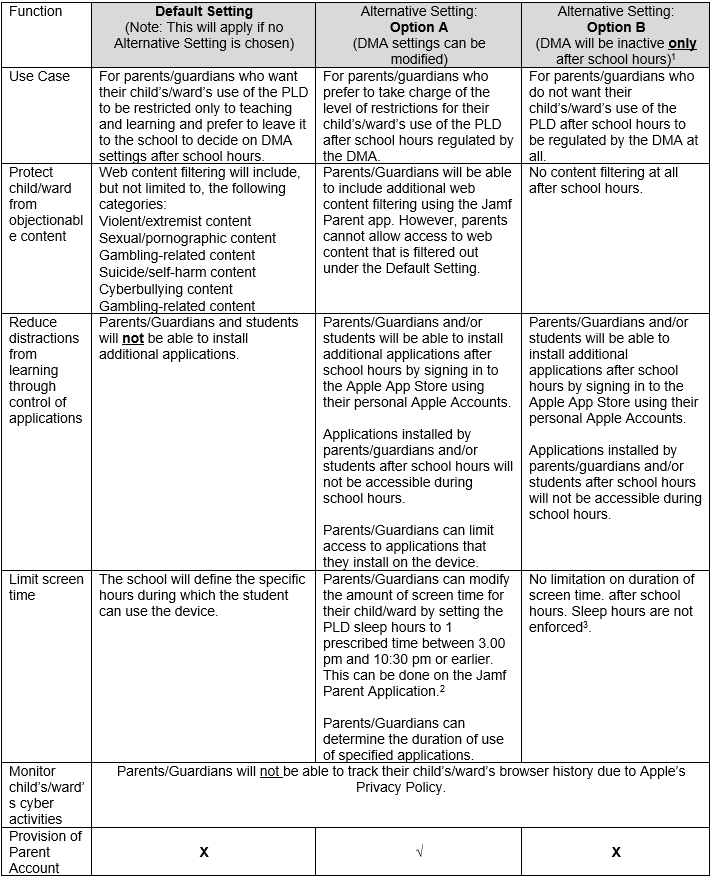
Footnote:
[1] Please note that software features are subject to change and may be improved or updated over time.
[2] No data will be collected after school hours when the DMA is inactive.
[3] During school hours, the screen time limits set by the school will override parents/guardians’ settings.
[4] It is not recommended to install other parental controls (e.g. Apple’s Family Sharing/Screen Time) as this could result in conflicting settings between school and parent controls. It may result in unexpected issues where some controls such as screen time restrictions may not work as intended.
-
Parents/Guardians may wish to consider the following questions before deciding on which After-School DMA Option is best for their child/ward.
a. Child’s/Ward’s current device usage habits
-
How much time does my child/ward spend on his/her device?
-
How well is my child/ward able to regulate his/her device usage on his/her own?
-
Does my child/ward get easily distracted while doing online learning?
b. Parental/Guardian involvement
-
How confident and familiar am I with managing my child’s/ward’s cyber wellness?
-
Are there existing routines and open conversations on the use of the internet at home?
-
Am I aware of how to prevent different types of cyber threats that my child/ward might face?
Annex C: Privacy and Data Security
Part 1: Data Collected and Managed by the DMA
1. The DMA does NOT collect any of the following data:
-
Login IDs and passwords entered into websites or into any applications
-
Actions performed (e.g. posts, online comments, items added to a shopping cart, etc.) when visiting websites and using apps
-
Documents and photos stored in the PLD
-
PLD location
-
Webcam videos and microphone recordings
2. The information collected by DMA will be accessible by the following personnel:
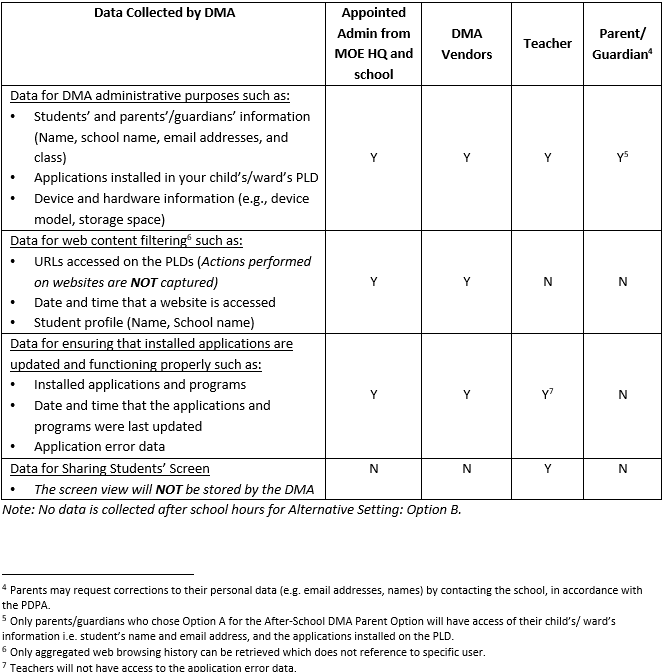
3. To prevent unauthorised access, DMA Administrators and the DMA Vendor will be required to access their accounts using 2-factor authentication or the equivalent to ensure proper accountability for information access and other activities performed. There will be regular account reviews and audits for DMA Administrators’ and the DMA Vendor’s accounts.
4. All user data collected through the DMA (see paragraph 2 of Annex C) will be stored in secure servers managed by an appointed DMA Vendor with stringent access controls and audit trail implemented. The DMA is a trusted cloud-based Software-as-a-Service (SaaS) solution that has been operating for many years. The DMA has also been subjected to regular security review and assessment by independent reviewers.
5. MOE has assessed and concluded that the DMA solution has sufficient security robustness to ensure data collected are properly stored and protected. MOE will also subject the DMA Vendor to regular audit on the security of the system based on tender requirements.
Part 2: Data collected and managed by the IT Applications
6. IT Applications. For the IT Applications (Student iCON and Microsoft 365 Pro Plus), the school will use your child’s/ward’s personal data such as his/her full name, birth certificate number and class to set up user accounts. This data will also be used for the purposes of authenticating and verifying user identity, troubleshooting and facilitating system improvements. In addition, the commercial providers of these platforms (e.g., Google, Microsoft) will collect and deal with user data generated by your child’s/ward’s use of these applications. The collection, use and disclosure of such data are governed by the commercial provider’s terms of use, which can be found here:
-
Student iCON: https://workspace.google.com/terms/education_terms.html
-
Microsoft 365 Pro Plus: https://portal.office.com/commerce/mosa.aspx
7. All user data which is collected by MOE will be stored in secure servers managed by the respective vendors of our systems. The Government has put in place strong personal data protection laws and policies to safeguard sensitive data collected by public agencies such as MOE. Please refer to this website for more information on these laws and policies: https://www.mddi.gov.sg/gov-personal-data-protection-laws-and-policies/
APPLICATION FOR SUBSIDY FOR PURCHASE OF PERSONAL LEARNING DEVICE (PLD)
Please approach the general office for more details.